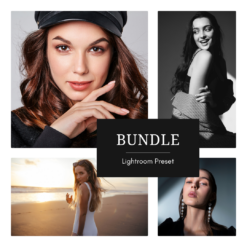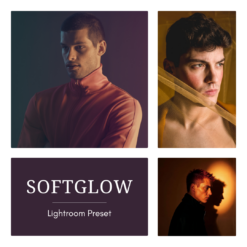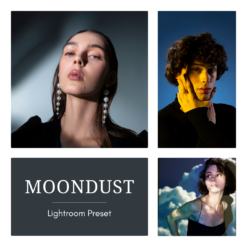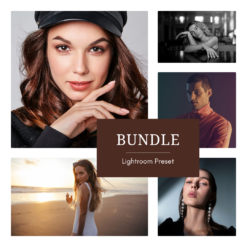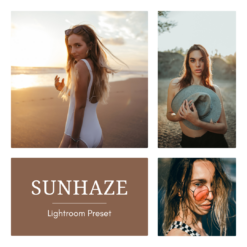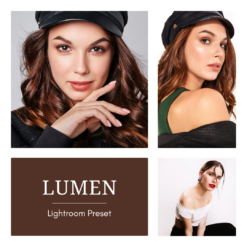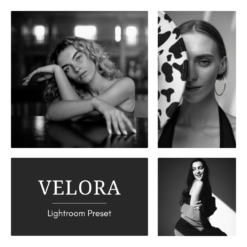
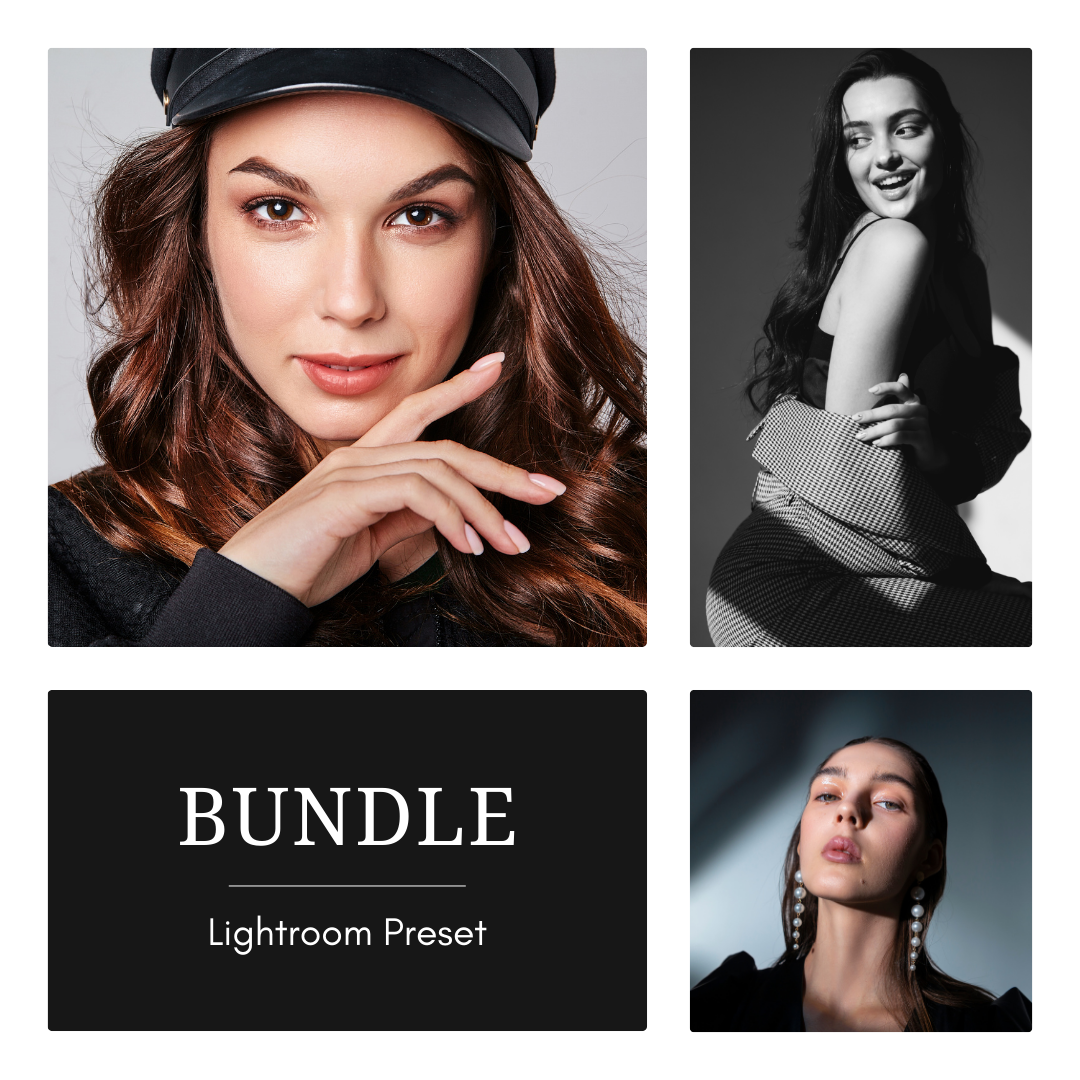
Lumen + Moondust + Velora — Bundle

Original price was: $62.30.Current price is: $54.95.

A three-style bundle that moves from clean studio brightness, to cool cinematic depth, to classic monochrome—giving a clear shift in mood while keeping everything polished and editorial.

Your files will be available to download once payment is confirmed.

Instant download items don’t accept returns, exchanges or cancellations.

Mobile:

  • Download the preset file(s) to your phone.

  • Open Lightroom → tap Add (+) and import the photo(s) or DNG preset.

  • Open the imported photo → tap Presets.

  • Select the preset → adjust if needed → tap Export/Share to save.

Desktop:

  • Download and unzip the preset pack on your computer.

  • Open Lightroom → go to the Develop module.

  • In the Presets panel, click +Import Presets.

  • Select the preset files (.XMP) → Import.

  • Open a photo → choose your preset from the Presets panel.

Tip: If a preset looks different, tweak Exposure/White Balance—every photo and lighting setup is unique.

What is a preset?

To put it simply, presets are photo filters created for Adobe Lightroom app. They give your photos a certain look and mood you would like to have. A preset is a combination of different action, like brightness, color adjustment, white balance, etc – resulting in one final result called “preset”.

The benefit of using it is you will get your desired look only in one click. Depending on your photo’s lighting and colors, you may still want to make small tweaks, which is normal for all presets.

What if my picture is too dark / bright

After applying the preset, go to the “Light” tab in Lightroom and adjust the Exposure slider up or down until it looks right for your photo. Every photo is taken in different lighting conditions, so it’s normal to make small adjustments. A quick tweak usually makes the preset look perfect. :)